Issues
An issue is a resident's report: a photo, a place, a sentence, maybe an urgent flag. It has a status, an assignee, a thread that both sides write into, and a link to the job when a trade is sent. This chapter is the manager's side; the resident's side is in The resident portal.
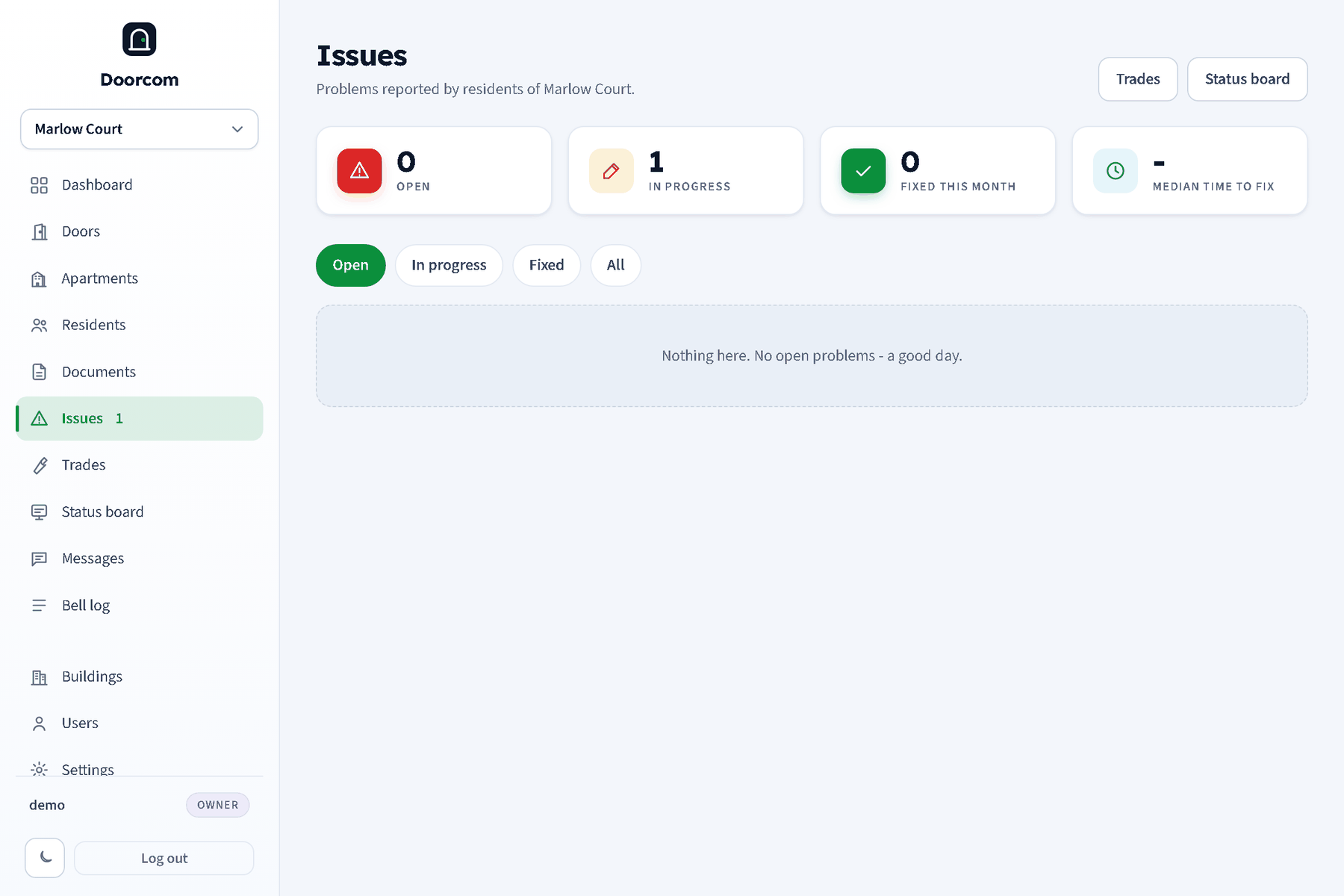
The list
Issues in the sidebar (the count of open ones is next to it) shows four figures for the building: open, in progress, fixed this month, and the median time from report to fixed over the last ninety days. Filters: Open, In progress, Fixed, All. Each row has the first photo, the title (the first line of the report, or the location when there is no text), the location, the flat and who reported it, when, the status and who it is assigned to.
The issue page
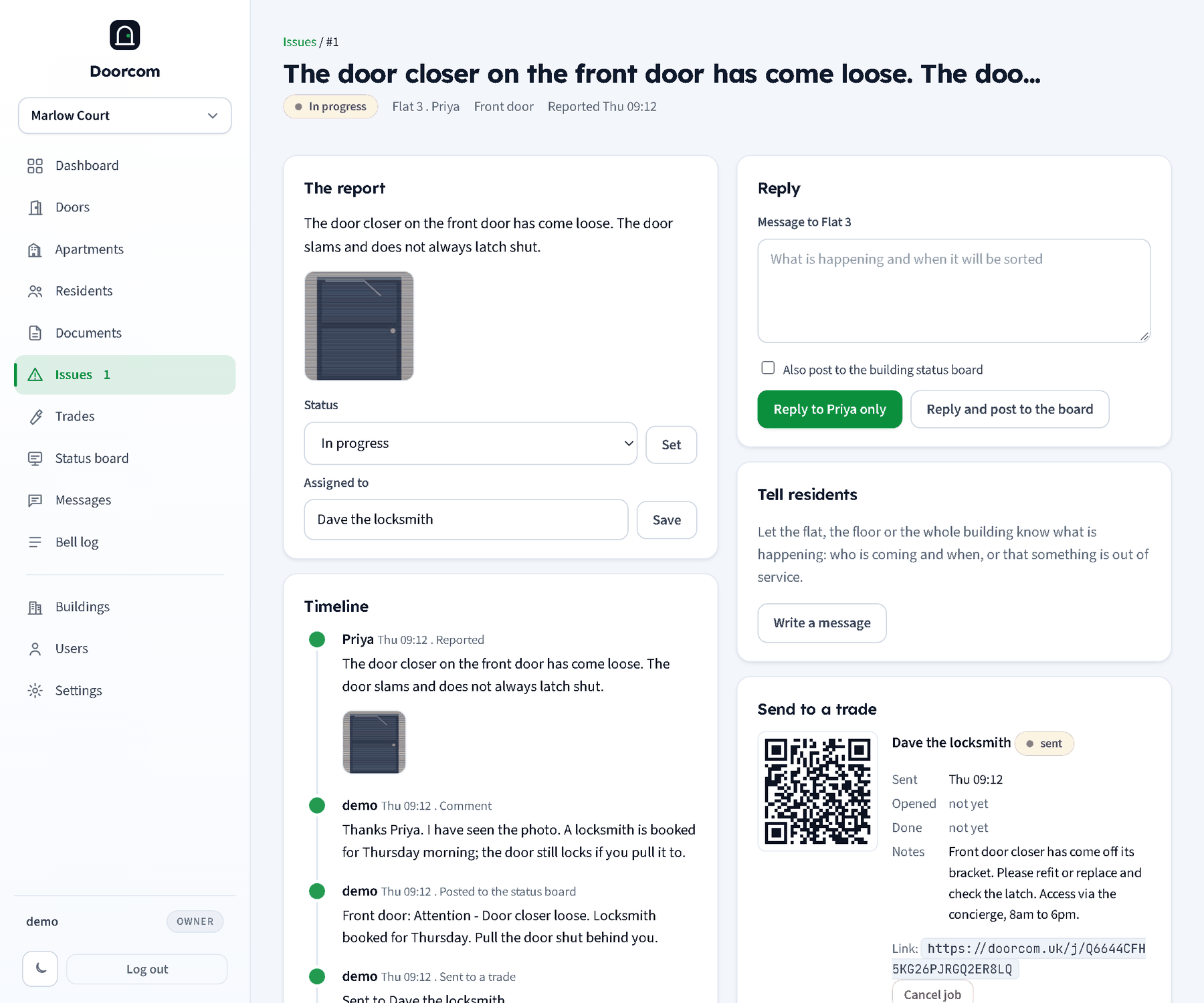
- The report
- The text, the photos (click for full size), the status select and the Assigned to box. Statuses: Open, In progress, Fixed (asks the resident to confirm), Closed.
- Timeline
- Everything in order: the report, comments from the resident, the manager and the trade, photos added, status changes, "sent to a trade", board posts, "Job done", the resident's confirmation. Under it, the address the resident sees this thread at.
- Reply
- A message to the flat. It goes into the thread and is delivered to the residents of the flat by Telegram, email, or a text when they have neither, signed with your name from Users (or your username).
- Tell residents
- Opens the Messages wizard with the audience and the trade already filled in.
- Send to a trade
- Covered in Trades and jobs. Once a job is sent this box shows the trade, when it was sent, opened and done, the instructions, the link and a QR, and Cancel job.
Replying and posting to the board
Tick Also post to the building status board under the reply and choose:
- Shows under: the board item, suggested from the location (Front door, Lift, Bins, Hallway, Heating, Water, or your own).
- Status: Attention (amber), Out of service (red) or Working (green).
- Board text: a short line for the board; blank uses the reply.
- Clears on: a date after which the item disappears from the board on its own.
- Also send everyone a Telegram message: every linked resident in the building gets the board line.
Reply to Priya only sends the reply; Reply and post to the board does both. The board post is noted in the thread, so the resident sees that their report is now on the board for everyone, and the hub shows "from a report by Flat 3" under the item.
Marking fixed and the confirmation
Set the status to Fixed and the residents of the flat are told "[your name] says [title] is fixed. Is it?" with a link to the thread. In the portal they get two buttons: Yes, it is fixed closes the issue and tells you; Still a problem reopens it and tells you and the trade. A trade marking a job done does the same as marking fixed. You can also close an issue yourself.
Who is told what
- A new report tells every manager of the building and the owners by email; an urgent one also by text to managers with a mobile. The email and mobile come from each user's own details on Users.
- A resident's comment or photo tells the managers and, if a job is open, the trade.
- Your reply tells the residents of the flat.
- Every step is written to the bell log too: "Problem reported", "Manager replied", "Status board updated".
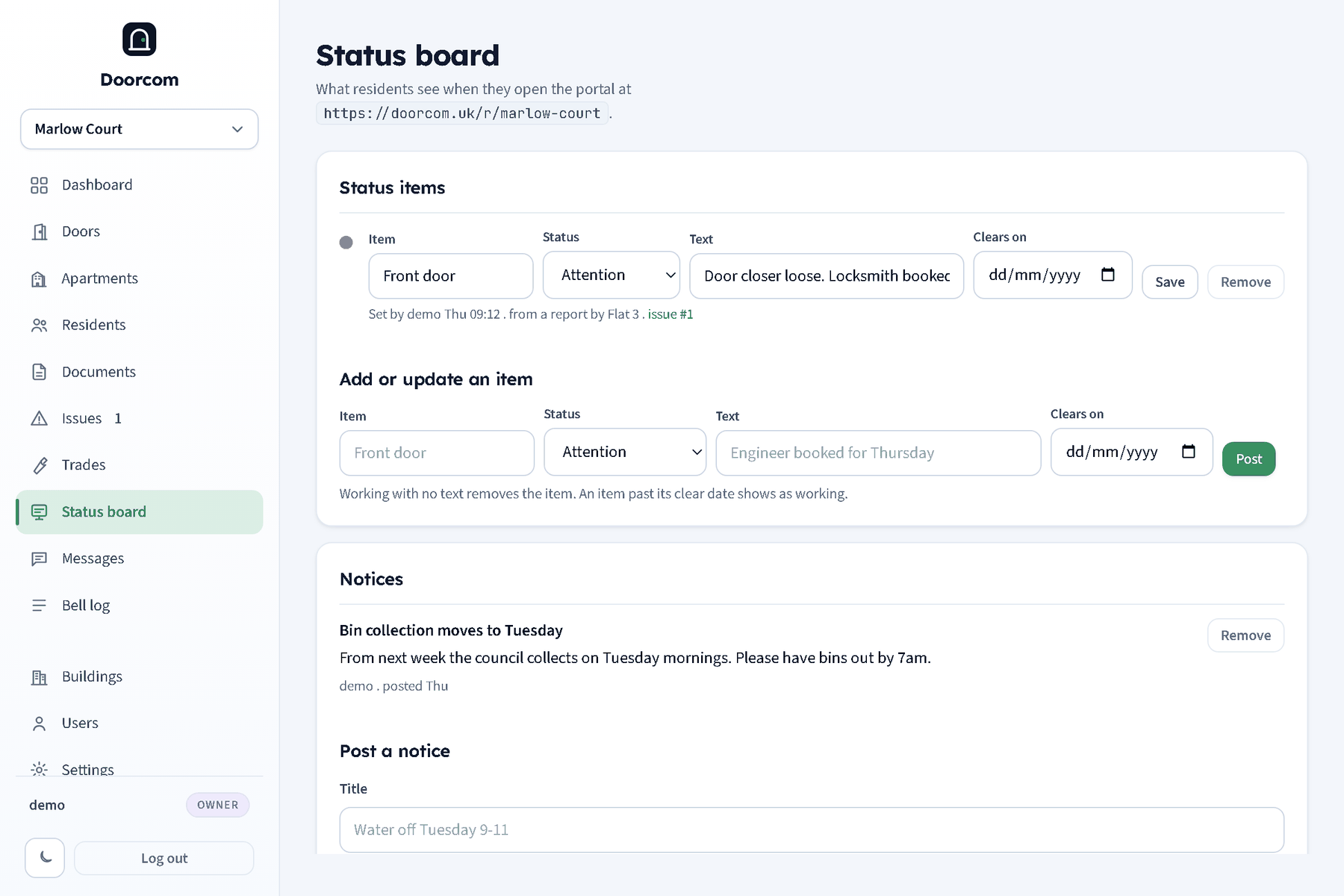
The status board page
Status board in the sidebar is the board as residents see it, with a form to set or clear an item by hand (item, status, text, clears on) and a form to post a notice (title, body, expires on). Clearing an item or setting it to Working with no text removes it. Notices can be deleted. The page shows the portal address to hand to residents.